Your Shark Ion Robot R75 is designed to make cleaning easier. When it stops working correctly, it can be frustrating. This guide provides a calm, step-by-step approach to diagnosing and fixing the most common issues.
We’ll walk through practical troubleshooting steps, explain error codes, and show you how proper maintenance can prevent many problems. For a comprehensive look at this model’s features and capabilities, you can read our detailed Shark Ion Robot R75 review.

Common Shark Ion R75 Problems and Solutions
Most performance issues fall into a few key categories. Identifying the symptom is the first step toward a solution.
Shark Robot Vacuum Not Charging
If your robot won’t power on or dies quickly, the charging system is the first place to check.
- Check the Basics: Ensure the charging dock is plugged into a working outlet and the robot’s contacts are clean. The dock should be against a wall with about 3 feet of clear space on each side.
- Inspect the Battery: Over time, lithium-ion batteries degrade. If the robot runs for only a few minutes after a full charge, the battery may need replacement. Specific part numbers for official replacements can be found in your Shark Ion robot manual or on the Shark official support site.
- Reset the Connection: Sometimes, a simple reset can re-establish the charging handshake. Manually place the robot on the dock and listen for the confirmatory beep.
Shark R75 Not Moving or Keeps Stopping
When the robot is stuck, won’t start its cleaning cycle, or a shark r75 robot vacuum keeps stopping, obstruction or sensor issues are likely.
- Turn the robot over and inspect the wheels, side brushes, and main brush roll. Remove any wrapped hair, string, or debris.
- Check for blockages in the suction path, including the dustbin and the channel leading to it.
- Wipe all sensors with a dry, soft cloth. This includes the cliff sensors on the underside and any navigation sensors. Proper cleaning sensors is a routine but critical task.
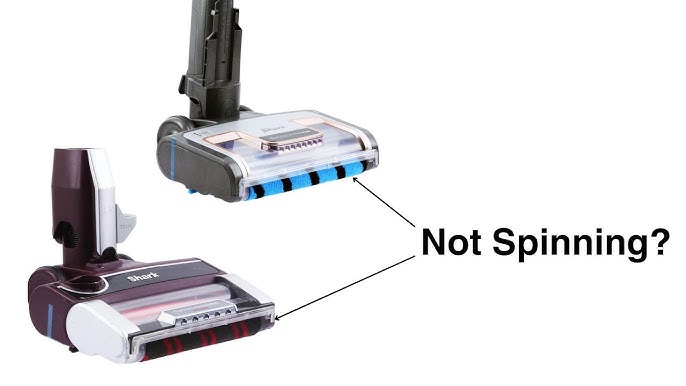
Shark Robot Brush Not Spinning
A non-spinning brush roll reduces cleaning effectiveness. The fix is often straightforward.
- Remove the brush roll cage and clear any tangled debris, especially from the ends of the brush.
- Manually spin the brush to see if it moves freely. If it’s stiff or grinds, it may be damaged and require a shark robot vacuum repair or replacement. Keep the part number for the brush roll handy when ordering.
Understanding Shark R75 Error Codes
The robot communicates problems through lights and sounds. An error code is your clue.
| Indicator | Likely Meaning | Action |
| Solid Red Light | General error, often low battery or charging issue. | Place on dock, ensure contacts are clean. |
| Flashing Red Light | Stuck or trapped. Possibly a sensor error. | Move to open area, check for obstructions, clean sensors. |
| Beeping Sound (why is my shark ion robot r75 beeping?) | Often indicates an obstruction in the brush roll or wheels. | Invert the robot and clear all moving parts. |
Step-by-Step Troubleshooting Guide
Follow this systematic process before considering more drastic measures.
1. The Initial Power Cycle
Turn the power switch on the side of the robot to “OFF.” Wait for 30 seconds, then turn it back to “ON.” Place the robot on its charging dock. This can resolve minor electronic glitches.
2. Perform a Basic Reset
If a power cycle doesn’t help, a reset often will. Press and hold the “Dock” and “Max” buttons on the robot simultaneously for about 10 seconds. Release when you hear a tone. This reboots the system without erasing settings.
3. Check and Update Firmware
A missing firmware update can cause connectivity and performance bugs. If your shark ion r75 not connecting to wifi, this step is crucial.
- Ensure the robot is connected to your home network via the SharkClean App.
- Navigate to the robot’s settings within the app.
- Check for any available updates. An update process may take several minutes.
How to Perform a Hard Reset
When basic troubleshooting fails, a hard reset or factory reset returns the robot to its original out-of-box state. This clears all schedules, Wi-Fi passwords, and error histories. It’s a strong solution for persistent issues.
How to reset shark ion robot r75 to factory settings:
- Place the robot on its charging dock and ensure it is powered on.
- Press and hold the “Dock,” “Max,” and “Power” buttons together for 10-15 seconds.
- You will hear a series of tones. Release the buttons when the robot’s lights cycle.
- The robot will reboot. You will need to reconfigure it with the SharkClean App as if it were new.
Cleaning and Maintenance to Prevent Issues
Regular care is the best way to avoid most problems. Think of it like changing the oil in your car.
- After Every Use: Empty the dustbin. Check the main brush roll and side brushes for hair and debris.
- Weekly: Wipe all sensors with a dry cloth. Inspect the filter, tapping it clean. Check the wheels for free movement.
- Monthly: Wash the filter with cold water and let it air dry for 24 hours. Fully inspect the brush roll for wear and tear. Having spare shark r75 parts like filters and brushes on hand ensures no downtime.
For this routine maintenance, many professionals recommend using the Not Working guide, which offers detailed, illustrated steps for various home appliances.
When to Contact Shark Support
If you’ve methodically tried all steps above and the issue persists, it’s time for expert help.
Your Shark Warranty Coverage
First, check your warranty status. The Shark Ion R75 typically comes with a limited warranty from the date of purchase. Have your model and serial numbers ready. Warranty often covers defects in materials or workmanship, but not damage from neglect or accidents.
Preparing to Call Shark Customer Service
Being prepared makes the process smoother. Gather this information:
- The robot’s model number (R75) and serial number.
- A detailed description of the problem and the troubleshooting steps you’ve already taken.
- Your proof of purchase (receipt or order confirmation).
You can initiate a shark customer service request through their official website. Their support team can guide you through advanced diagnostics, authorize a repair, or process a replacement if covered under warranty.
Robot vacuums, like any appliance, require occasional attention. Starting with simple cleaning and resets solves most issues with your Shark Ion R75. Methodical troubleshooting saves time and frustration. When a problem is beyond routine care, your warranty and Shark’s support team are there to help you restore your robot’s helpful function.